

- It runs in your account. Your cloud bills you for what it runs.
- You approve every change. Nothing is installed or updated until you approve it in your cloud. There are no automatic updates.
- No cloud keys. OpenWork never asks for your cloud credentials. You run the installer yourself.
- Your first sign-in stays yours. The first administrator’s sign-in code is kept in your cloud’s secret store. OpenWork never receives it.
Who can use it
Managing deployments asks you to sign in again if you haven’t signed in
recently.
If Create deployment is locked with a message about the installer, no
installer has been published for that cloud yet. Only OpenWork can fix that; it
isn’t something your cloud sign-in can change.
What you need
AWS
- An AWS account, and someone who can create a CloudFormation stack with IAM resources. An account that holds nothing else is best.
- A public Route 53 hosted zone in that account for the address. For
openwork.example.com, that’s theexample.comzone or a delegatedopenwork.example.comzone. The installer createsopenwork.example.com,api.openwork.example.com, and their HTTPS certificates. - If the domain has CAA records, they must allow
amazon.com. - A network, chosen in the form:
- New dedicated network: creates its own VPC, NAT gateway and ECS cluster. The form estimates about $100–150 a month at the small size.
- Existing VPC: runs in your VPC, with two or more private subnets with outbound internet through NAT, two or more public subnets for the load balancer, and optionally your ECS cluster. The form estimates about $60–100 a month at the small size, plus your network’s own costs. The installer checks your network before changing anything.
Google Cloud
- A dedicated Google Cloud project with billing turned on. Don’t use a shared production project.
- A public Cloud DNS zone in that project that serves the address.
- Costs include Cloud Run, Cloud SQL, a load balancer and storage. Check Google Cloud pricing.
Create a deployment
- Open Manage › Deployments and click Create deployment.
- Choose the Cloud and fill in the form:
- Name, for example
Production - AWS: AWS account ID, Region, Network, and the Route 53 hosted zone ID for that address
- Google Cloud: Google Cloud project ID, Google Cloud project number, Region, and the Cloud DNS managed zone name for that address
- Address, for example
openwork.example.com - First administrator email
- Name, for example
- Confirm that you control the account, and that you understand the permissions and costs.
- Click Create deployment.
AWS example
This example follows a real install, with identifying values masked. Use your own values, not the placeholders.AWS sign-in is optional
You need to be signed in to the target AWS account to approve the install, but you don’t need to save an AWS sign-in URL in OpenWork. If you’re already signed in, or you prefer to sign in separately, skip the setting. The approval link goes straight to the AWS console when no portal is saved. Set it up before opening the installer only if you want approval links to go through your team’s AWS IAM Identity Center access portal. Choose Use an access portal (optional) under Approve in AWS, or open Deployments › Settings › AWS sign-in. Enter your start URL, for examplehttps://[redacted].awsapps.com/start, and click Save sign-in. Leave Role name (optional) blank to pick a role in AWS, or enter the exact role name shown in your portal.
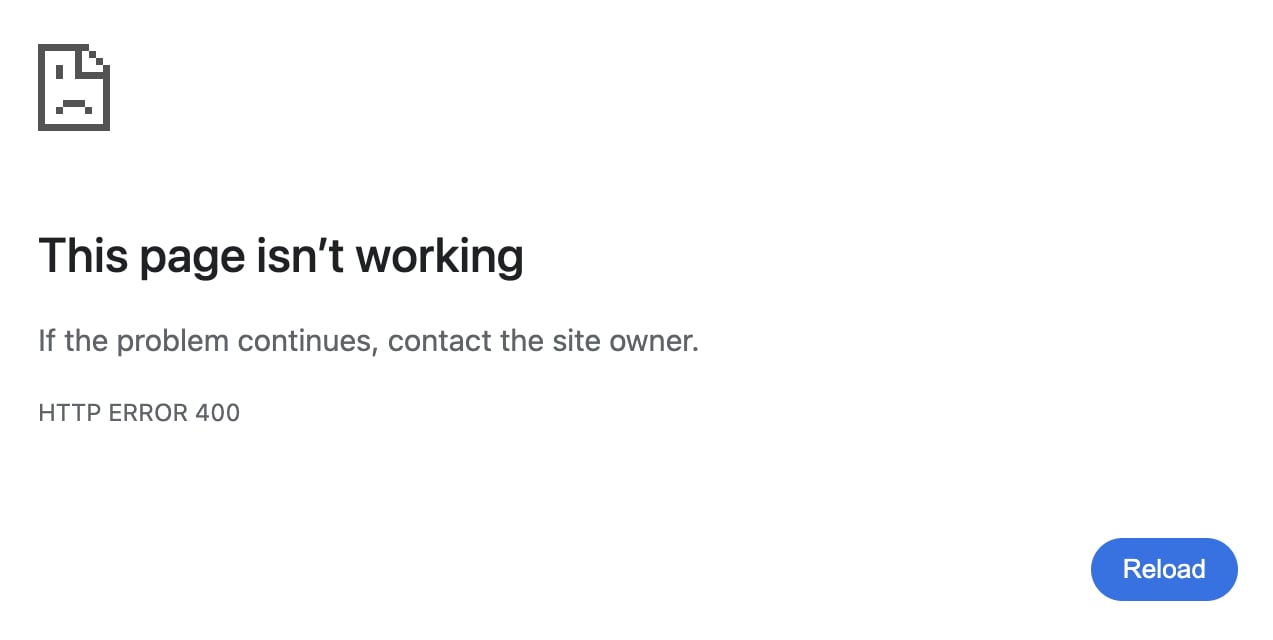
If a portal is already saved and you’re signed in to the right account, click Already signed in to AWS? Open the installer directly. If the portal sends you to a blank HTTP ERROR 400 on signin.aws.amazon.com, use that direct link or open the original approval link in a private window and sign in there. You don’t need to create another deployment.
Approve the install
- AWS: under Approve in AWS, click Review and approve in AWS. If you see Prepare AWS approval first, click it to get the link. The CloudFormation console opens with the installer filled in. Make sure the console shows the intended AWS account and region. Review the prefilled parameters and permissions, acknowledge the required IAM capabilities, then click Create stack. Sign in to that AWS account in the same browser first. If AWS shows a sign-in page for a root or IAM user, the browser isn’t signed in to the account: sign in on your company’s AWS page, then open the link again.
- Google Cloud: click Prepare Google Cloud approval. Click Copy command, then Open Google Cloud Shell, and run the command there. It checks the installer before running it, asks you to type the project ID to approve, and asks for your consent to use your Google credentials. It never asks for service account keys.
CREATE_IN_PROGRESS means AWS is still working; CREATE_COMPLETE means the
stack finished. If the stack fails or rolls back, check Events for the first
failed resource and its reason before retrying.
If an installer step fails, the deployment page says what to check. Fix the
reported issue and use Prepare retry when offered.
Sign in for the first time
When the install finishes, openhttps://<your address>/setup. Enter the
one-time code from the deployment’s secret in AWS Secrets Manager or Google
Cloud Secret Manager, field DEN_INITIAL_ADMIN_BOOTSTRAP_CODE. Technical
details on the deployment shows where to look. See
Create the first administrator.
Then set up email and single sign-on in your new OpenWork. If you installed the managed runtime on AWS, configure an upstream model provider under Models before sending your first model request. To use Slack, add your Slack app credentials in Connectors in the new instance.
Status checks
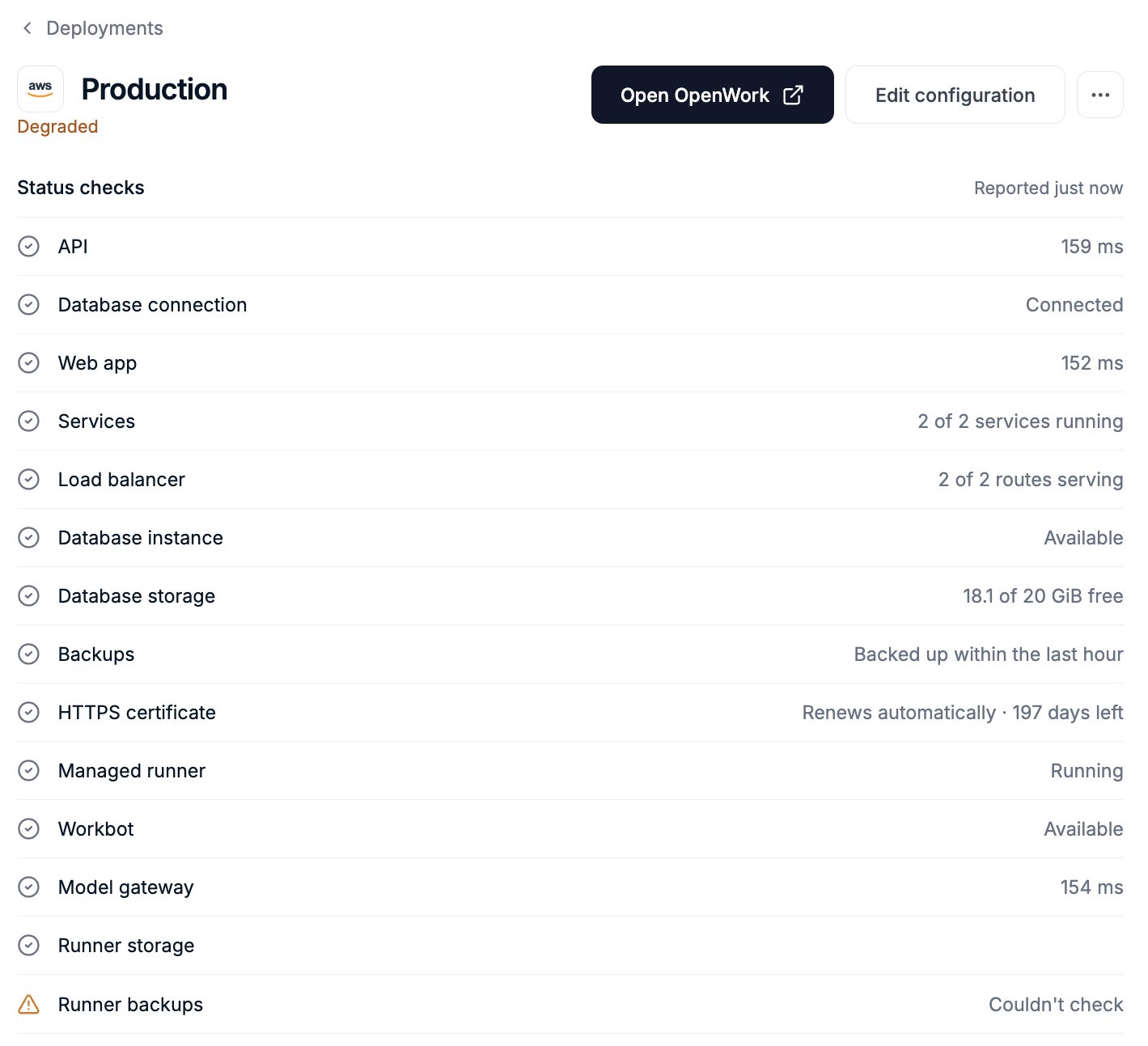
A read-only health agent in your account reports every 5 minutes. Status checks shows API, Database connection, Web app, Services, Load balancer, Database instance, Database storage, Backups and HTTPS certificate. Reports contain only check results. Each deployment reads:- Operational: everything passes.
- Degraded: a warning, or a check that isn’t critical failed.
- Down: the API, web app, database connection or services are failing.
- Not reporting: no report recently. The last known checks stay visible.
Update
When a newer installer is published, the deployment shows Update to and the version. Click it to get a command for AWS CloudShell or Google Cloud Shell, then run it there. The update refuses to delete or replace your database, secrets or network, and checks health again afterwards.Change the configuration
After an AWS deployment is installed, Edit configuration changes some of its settings without waiting for a newer installer. It is rolling out by request: if you don’t see Edit configuration on an installed deployment, ask your OpenWork contact. Google Cloud deployments can’t be edited after installation yet.What you can change
What is fixed at installation
Address, AWS account, Region, Hosted zone, Network and Size are chosen when the deployment is created. The dialog shows them locked under Fixed at installation. Your database, certificates, DNS records and network are built around them, so changing one would mean a different installation, not an edited one. To use different values, create a new deployment. The gateway runtime can’t be turned off once it is added: removing it would delete the runner’s files, secrets and backups.Make a change
- Open the deployment in Manage › Deployments and click Edit configuration.
- Change the values and click Review changes. The review lists each value Before and After and says what the change does to your installation.
- Tick the confirmation and click Prepare AWS approval.
- Click Copy command, then Open AWS CloudShell signed in to the deployment’s AWS account, and run the command there.
- Show approval command to see the command again, for example after reloading the page.
- Edit change to replace it with a different change. The earlier command stops working.
- Discard change to drop it. The earlier command stops working.
A change restarts services
Every change you approve restarts the OpenWork API and web app, so people using your OpenWork are interrupted for a moment. A change to cloud computers also restarts the managed runner, which interrupts work it is running at that moment. Run the command at a quiet time. OpenWork shows the same six steps as an install. After the last one, HTTPS and database verified, the deployment shows the new values. If a step fails, the page says what to check; the deployment keeps showing the values from before the change, AWS may be partly changed, and Review and try again reopens the change so you can run it again.Secrets stay in your account
OpenWork never asks for a secret value. For cloud computers, create your Daytona or Freestyle API key as a plain-string secret in AWS Secrets Manager, in the deployment’s AWS account and region, and enter only its ARN, for examplearn:aws:secretsmanager:us-east-1:123456789012:secret:daytona-key-Ab12Cd.
OpenWork Cloud stores the ARN and passes it to the installer; it never receives
the key value. Your installed runner uses the key to authenticate to your
chosen computer provider.
If Edit configuration is locked
The line under the button says why. The usual reasons:- An install, update or change is waiting for approval or running in AWS. Finish it, or discard the change, first.
- The last install, retry or update didn’t finish. Finish it with Prepare retry or Update to, then edit the configuration.
- You don’t have the Manage deployments permission. Ask the organization owner.